Each person plugs in their own laptop, or the room has its own system that joins with one touch?
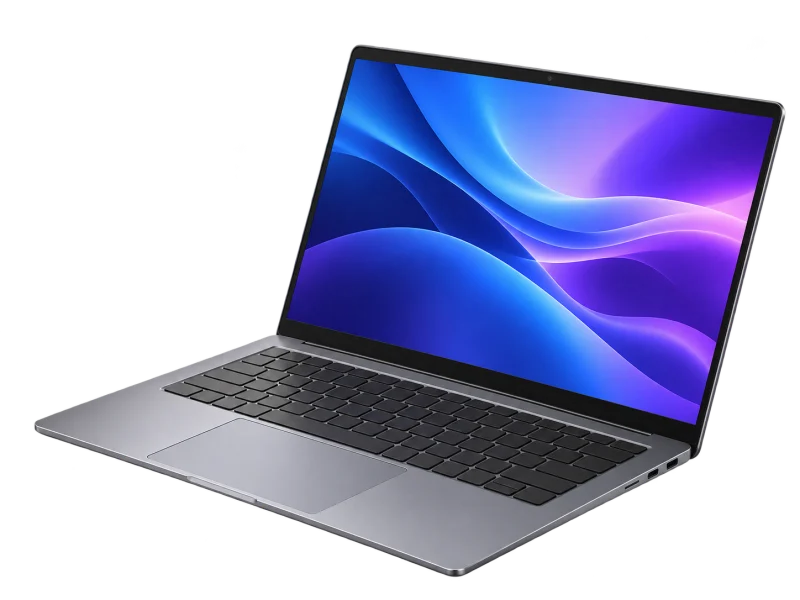
Bring your own laptop (USB)
All-in-one conference camera
LaptopRuns the user’s meeting app
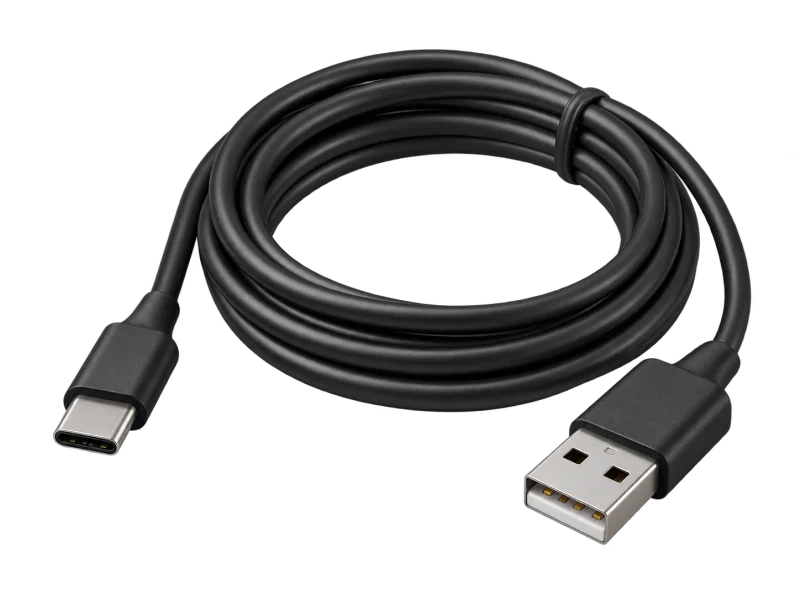
USB cableConnects to the camera
Camera + mics + speakerIn one device
Room displayShows remote participants
Works with the user’s chosen platform; resolution depends on the port, cable and meeting app.
Consider when
Small or huddle rooms used with several platforms.
Check the match
Laptop ports, USB cable and the meeting app’s capabilities.
Dedicated room system
Room computer + touch controller
Touch controllerOne-touch join
Room computeRuns the room’s meeting platform
Camera and audioSized to the room
DisplaysOne or two screens
Every room works the same way; licences and platform-certified devices must be confirmed.
Consider when
Mid-size to large rooms, and organisations on one platform such as Microsoft Teams.
Check the match
Room licences, certified devices and the room’s network.
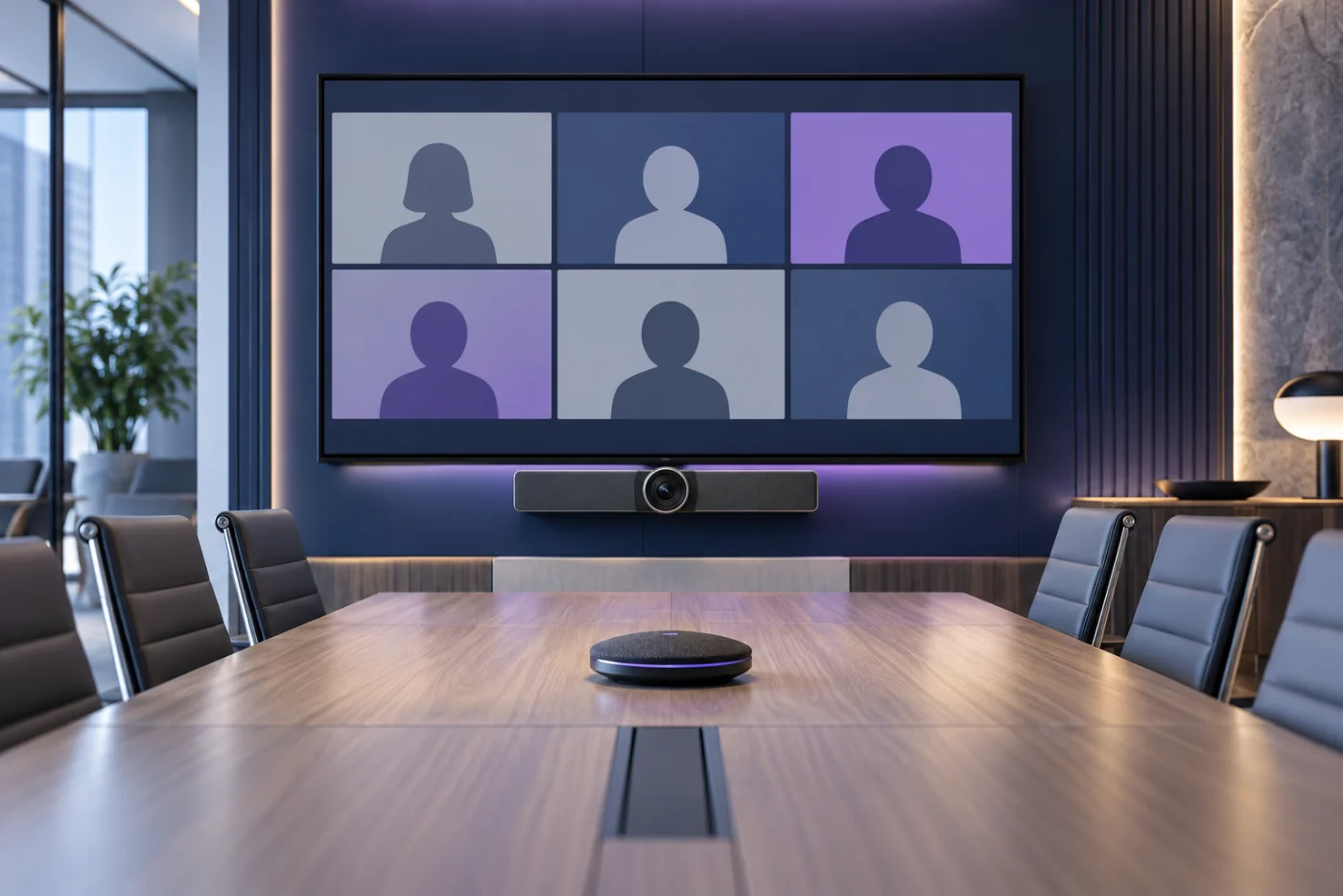
AI-generated equipment concepts, not photographs of specified models.
Real results depend on room size, light, echo and your organisation’s platform.
Meeting room equipment
Camera, microphones, speakers and displays chosen so every seat is seen and heard.
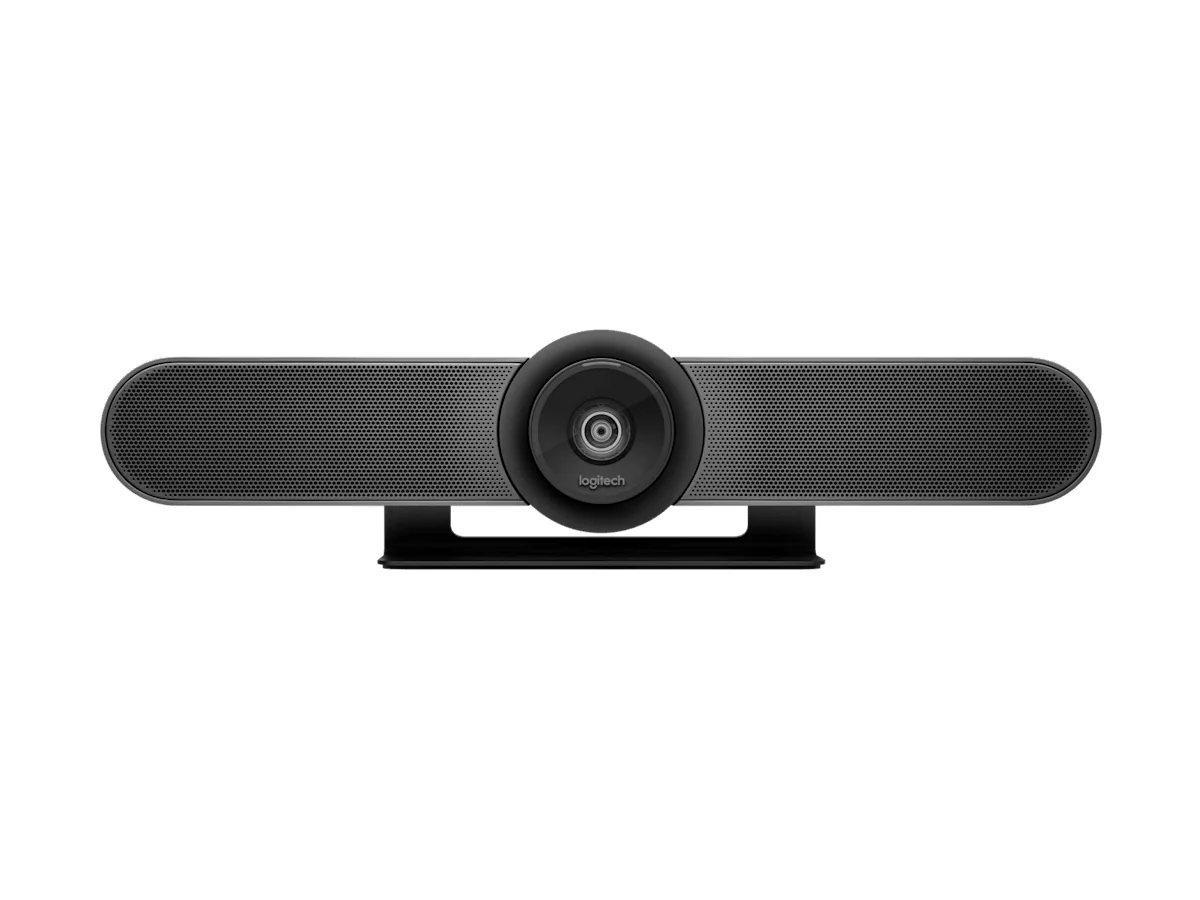
01All-in-one camera
Conference cameras for small rooms
Example original Logitech MeetUp: 120° diagonal field of view, three microphones and a speaker built in, USB to the computer; 4K needs a USB 3.0 cable.
02
AI-generated concept
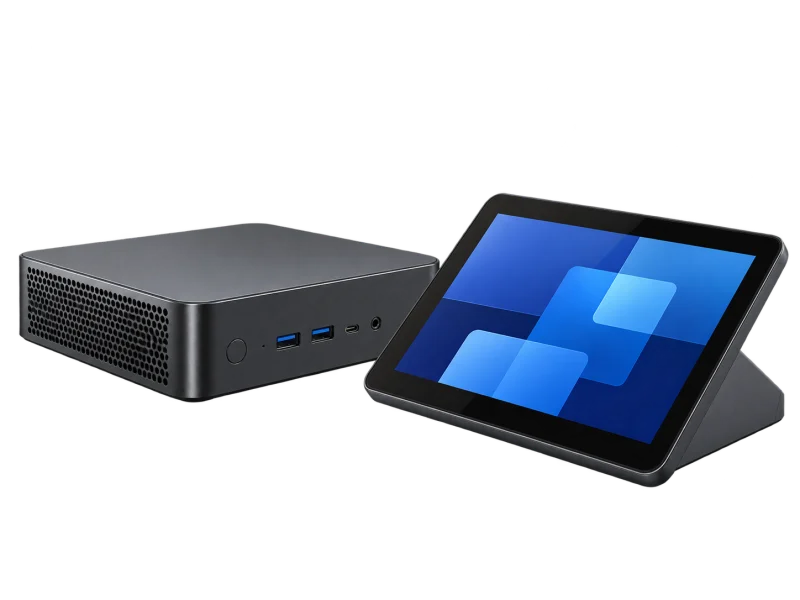
Room system
Room compute and touch controller
For rooms that join in one touch on the same platform every time.
03
AI-generated concept
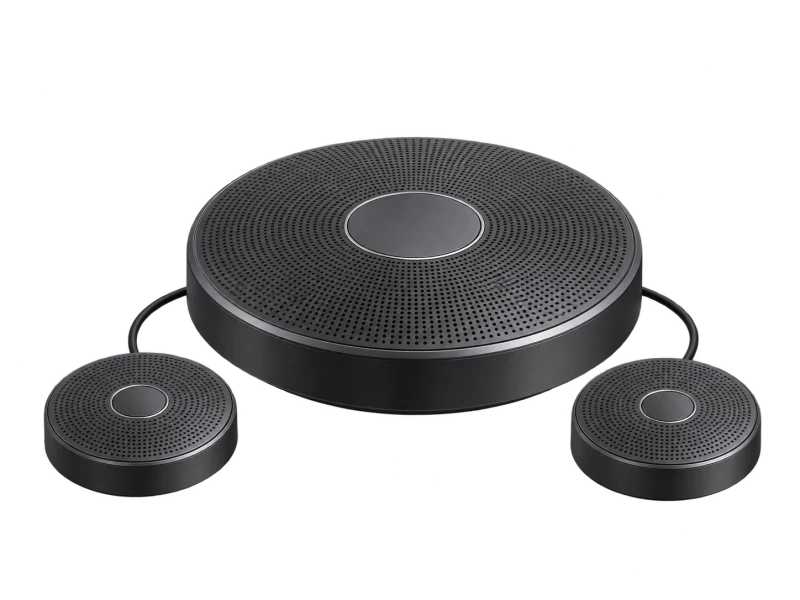
Audio
Extra microphones and speakers
Long rooms or large tables need added microphones for the far seats.
04
AI-generated concept
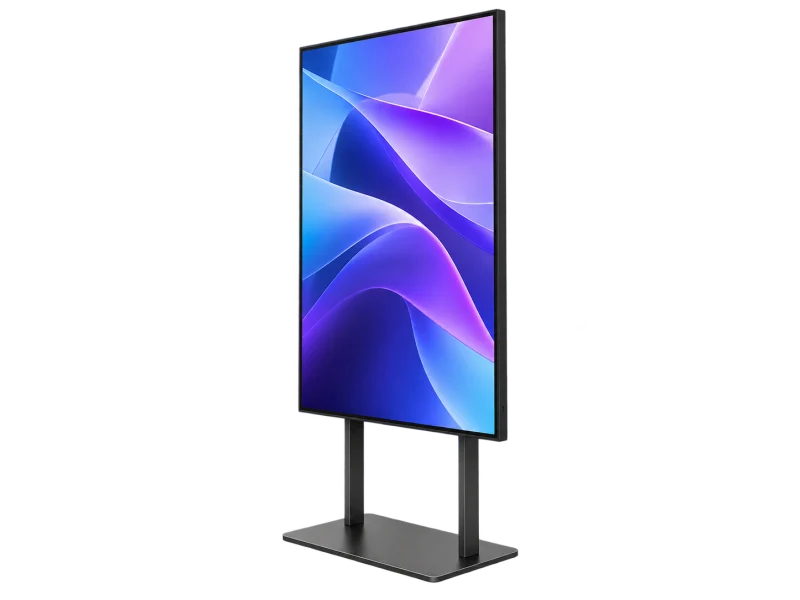
Displays
Displays for people and content
Screen size set by the farthest seat, or two screens for people and content.
Models, part numbers and local availability are confirmed in the quotation; the original MeetUp differs from MeetUp 2.
Choose for the room size
Room size and seating decide the camera, microphones and display.
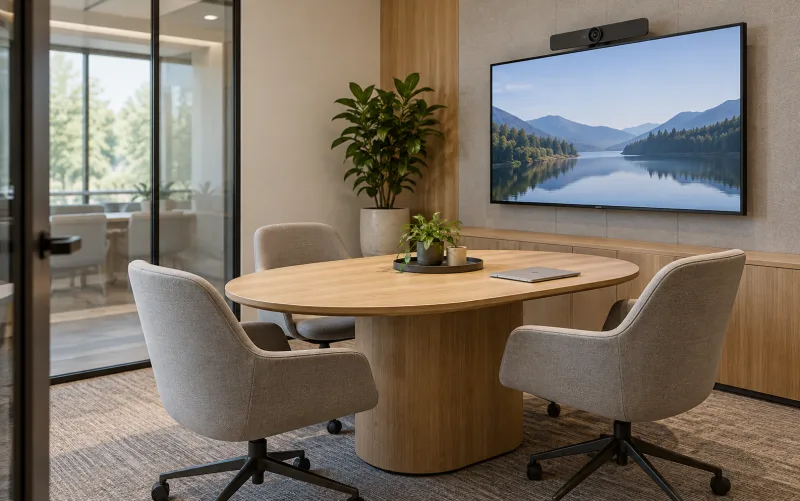
AI-generated setting
Huddle rooms
Quick small-group meetings
A wide-angle camera for close seating
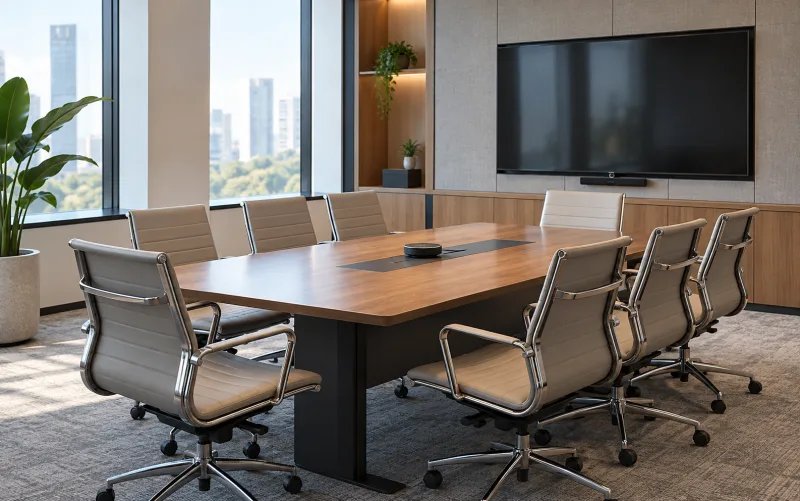
AI-generated setting
Mid-size rooms
Regular team meetings
Extra mics for the end of the table
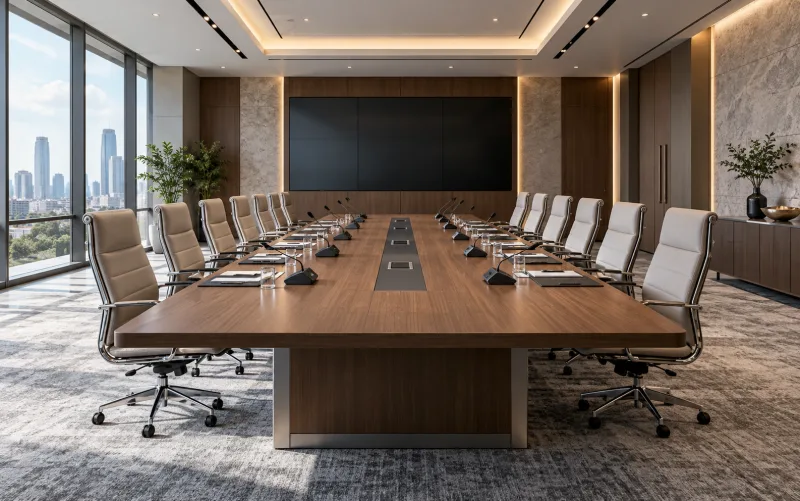
AI-generated setting
Boardrooms
Long tables and many participants
Multiple cameras and microphones
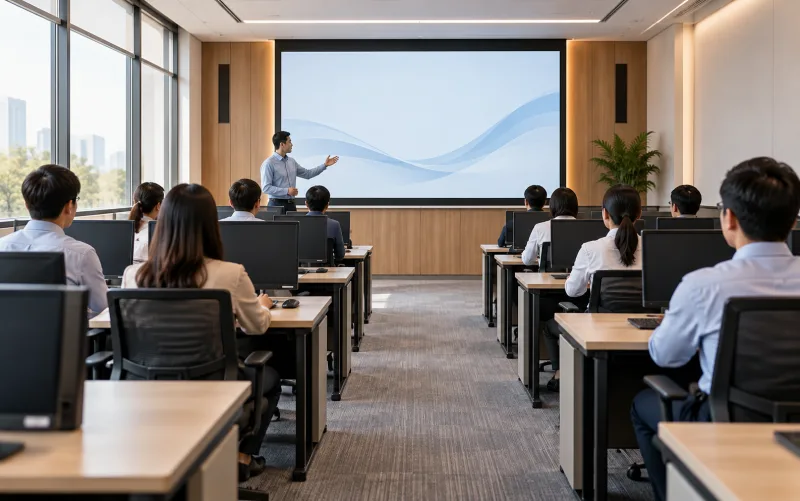
AI-generated setting
Training rooms
Presenter plus online audience
Presenter view and wireless mics
What makes meetings clear to see and hear
Field of view and seating
Camera placed so its field of view covers every seat, based on the selected model.
Acoustics and lighting
Hard walls echo and window backlight darkens faces, so both are checked before choosing equipment.
Tested on your platform
Trial calls from the farthest seat on your real meeting platform before handover.
Three brands. Choose for your platform.
Logitech leads for most rooms; Poly and Microsoft Teams Rooms where your organisation standardises on them.
Customer favorite
Logitech
Best for
Small to mid-size rooms and multi-platform organisations
Why choose it
All-in-one USB conference cameras that plug into a laptop
Before choosing
The model for the room size and the USB cable it needs
Poly (Polycom)
Best for
Organisations already using Poly or Polycom equipment
Why choose it
Extends existing rooms with a consistent experience
Before choosing
Platform compatibility and current models
Microsoft Teams Rooms
Best for
Organisations that run on Microsoft Teams
Why choose it
Rooms that join Teams meetings in one touch
Before choosing
Room licences and certified devices
This is DPI design guidance, not a quality or price ranking.
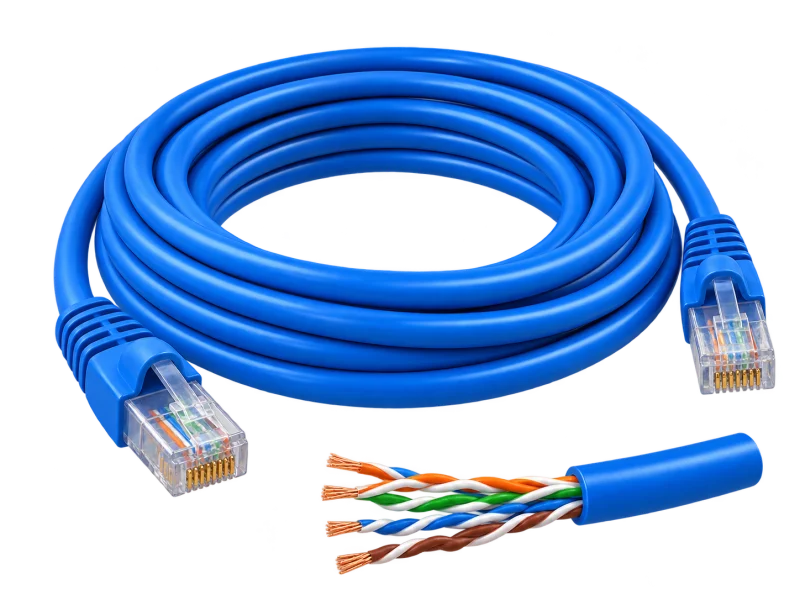
LINK American StandardThe cabling DPI specifies for its systems
Smooth meetings start with a good cable
Meeting rooms need LINK cabling for room compute, displays and booking panels; DPI routes it neatly through tables and walls.
Patch cords at table boxes and behind displays, where cables are moved and bent.
Room network
Network cabling to room compute, displays and touch panels.
Table connections
Table connections for laptops and presenting.
Test calls
Test video, audio and screen sharing on the real network.
Model names and constructions are from LINK’s product list. Cable standards support the design; end-to-end performance is confirmed through the selected equipment, terminations, routing and project acceptance tests.
One team from survey, design and supply to installation, testing and after-sales support.
01
Authorized distributor and certified partner
Equipment sourced through authorized channels, with model advice and the manufacturer’s warranty terms.
02
Designed from a site survey
Seating, sightlines, lighting and room acoustics are checked before choosing camera and microphones.
03
The whole system, not just devices
Camera, audio, display, room compute and network designed for each room.
04
Honest brand advice
Logitech, Poly or Microsoft Teams Rooms matched to the platform your organisation uses.
05
Tested before handover
Trial calls from the far seats on your real meeting platform before handover.
06
Ongoing support nationwide
A Pathum Thani team providing maintenance and technical support across Thailand.
Book a site surveyModels, terms and warranty are specified in each project quotation.
Connect the room and remote participants
Cameras, audio, the meeting platform and displays work as one experience.
Meeting room 3 · six seats14:00:00
Join
USB: the user’s laptop connects to the all-in-one camera with one cable
LaptopRuns the user’s meeting app
01
USB cableConnects to the camera
02
Camera + mics + speakerIn one device
03
Room displayShows remote participants
04
Join
Plug the laptop into the camera by USB and start the meeting in the user’s own app.
Scene and timing are illustrative. Real results depend on room size, light, echo, the meeting platform and the equipment.
AI-generated equipment concepts, not photographs of specified models.
An operating concept, not an installation drawing. Devices, paths and interfaces are defined after the site survey.
Before you specify
Provide seating and display positions, and assess backlighting, noise and echo before placing the camera and microphones.
Identify the host, operating system and meeting app; check USB ports, cable routes and the required video resolution.
Test near and far seats, screen sharing and the actual steps users will follow to start a meeting.
Testing & handover
Agree a real meeting-call test covering camera and audio selection, mute controls and screen sharing, with startup guidance for users and administrators.
Equipment details, compatibility and scope must be confirmed for each project.
Manufacturer references
Logitech MeetUp product information
Logitech MeetUp datasheet
Logitech MeetUp support specifications
Before you decide
Does original MeetUp deliver 4K with the supplied cable?
The supplied USB 2.0 cable supports up to 1080p. 4K requires suitable USB 3.0 cabling and a port, plus a capable computer and application.
Is a wide-angle camera enough for a meeting room?
No. Assess views from every seat, microphone coverage, echo and the meeting platform together. Choose any additional equipment from the actual room test.
From survey to support
The same six stages on every project, so the system is ready on handover day.
 AI-generated concept
 AI-generated setting
 AI-generated setting
 AI-generated setting
 AI-generated setting



 AI-generated concept